Deployment Options
UltraDDR offers users increased flexibility via the many ways in which it can be implemented within an environment. This Deployment Option guide describes the various methods in which UltraDDR may be used, as well as information on what type of environment it’s most suited for. Each option is not mutually exclusive from the others, in that it is possible to mix and match deployment options.
Resolver
UltraDDR can function as the external DNS recursor, resolving domain names to IP addresses and applying security simultaneously. This deployment method is most useful if many of your corporate systems that need protection use your corporate DNS servers. Changing an enterprise to use UltraDDR as the external DNS recursor is a very straightforward task and generally takes less than five minutes using the following simple steps.
Click on the  icon, and then select Organization Settings. From the left-hand navigation menu, select UltraDDR Resolver.
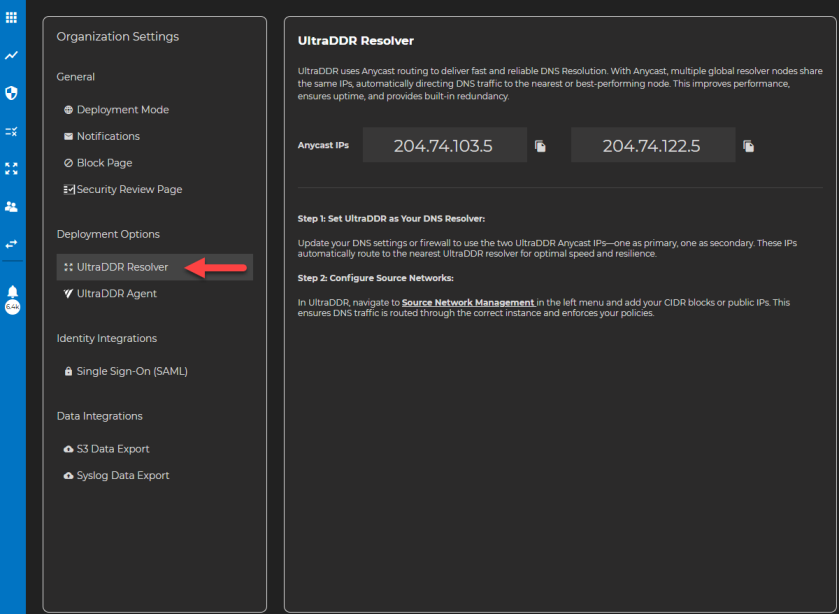
Step 1: Set UltraDDR as Your DNS Resolver
-
Update your DNS settings or firewall to use the two UltraDDR Anycast IPs—one as primary, one as secondary. These IPs automatically route to the nearest UltraDDR resolver for optimal speed and resilience.
Step 2: Configure Source Networks
-
Navigate to Source Networks from the left-hand navigation menu and add your CIDR blocks or public IPs. This ensures DNS traffic is routed through the correct instance and enforces your policies.
-
For a corporate office, this will likely be the address or CIDR block where your current external recursive servers are.
-
In the Source Networks section, enter the specific IP addresses or CIDR blocks where your recursive traffic will be coming from.
-
Update your DNS configuration to use UltraDDR as your upstream DNS resolver. All external DNS traffic will flow through and be protected by UltraDDR, with full blocking of malicious traffic occurring when in Blocking Mode.
IP Addresses for UltraDDR DNS Resolvers
IPv4
204.74.103.5
204.74.122.5
Ipv6
2610:a1:3092::5
2610:a1:3090::5
Updating the Windows Server
2012 and 2012 R2
-
From the Start menu, click Administrative Tools, then select DNS.
-
Choose the server you want to edit, then select Forwarders.
-
Click the Edit button.
-
Add the UltraDDR IP addresses (from the list above) in the IP address list.
-
Please write down your current DNS settings before switching to UltraDDR, in case you want to return to your old settings for any reason.
-
-
Click OK, and then click Ok again a second time to finish.
2008 and 2008 R2
-
From the Start menu, select Administrative Tools, then select DNS.
-
Choose the server you want to edit, then select Forwarders.
-
Click the Edit button
-
Add the UltraDDR IP addresses (from above) in the IP address list
-
Please write down your current DNS settings before switching to UltraDDR, in case you want to return to your old settings for any reason.
-
-
Click OK.
-
Click OK.
2003 and 2003 R2
-
From the Start menu, select Administrative Tools, then select DNS.
-
Choose the server you want to edit, then select Forwarders.
-
Select All Other DNS domains in the DNS domain list.
-
Add the UltraDDR IP addresses (from above) in the selected domain’s forwarder IP address list.
-
Please write down your current DNS settings before switching to UltraDDR, in case you want to return to your old settings for any reason.
-
-
Click OK.
Update the BIND Server
-
Configuration files for bind (9) are located in the /etc/bind directory.
-
Edit the named.conf.options file to configure the server as a forwarder.
options {
directory “ /var/cache/
bind”;
recursion yes;
allow-query [
goodclients; };
forwarders {|
204.74.103.5;
204.74.122.5;
2610:a1:3092::5;
2610:a1:3090::5;
};
UltraDDR Agent
The UltraDDR Agent is available for installation on Windows, macOS, iOS, and Android platforms. This deployment method is useful if many of your users and devices are not on-premises, whereby relying solely on your corporate DNS servers is not sufficient for complete coverage. Please see our UltraDDR Agent documentation for additional details on deployment steps.
The UltraDDR Agent for Windows and macOS can be downloaded from https://updates.ultraddr.com.
iOS (iPhone and iPad)
-
Install the UltraDDR Agent for iOS from the iOS App Store: https://apps.apple.com/us/app/ultraddr/id1673456866
Google Play Store (Android devices)
-
Install the UltraDDR Agent for Android devices from the Google Play Store: https://play.google.com/store/apps/details?id=com.ultradns.android.ddr