Sorting and Viewing
There are several features on the UI Portal to assist you in viewing and filtering your records or pools.
-
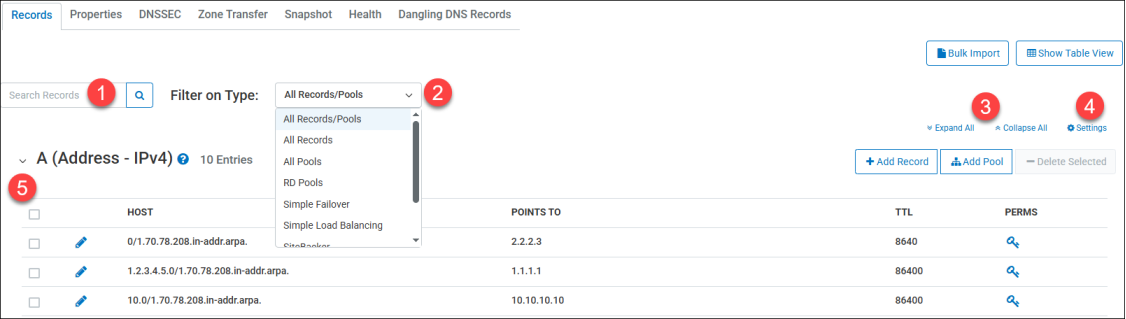
Search Records – Using the search bar, you can search for a specific record name from your list of created records. The returned results will be wildcard, meaning any record matching a portion of your search will be displayed.
-
You can look for a specific IP address of a record (even if it’s in a pool).
-
You can search by TTL value.
-
Combining a hostname search with filtering will enhance your search results.
-
-
Records and Pools filtering – Using the filter box, you can narrow down the results you see on your screen.
-
All Records/Pools – Every record and/or pool will be displayed when viewing a specific record type.
-
All Records - Only records not in a pool will be displayed when viewing a specific record type.
-
All Pools – Only pools will be displayed when viewing a specific record type.
-
Specific Pool Types – You can select a specific pool type to display those specific pool types in their corresponding record type.
-
-
Expand All / Collapse All / Settings – Instead of manually expanding and collapsing each record type, you can click Expand All to open every record type on the screen or Collapse All to close them all.
-
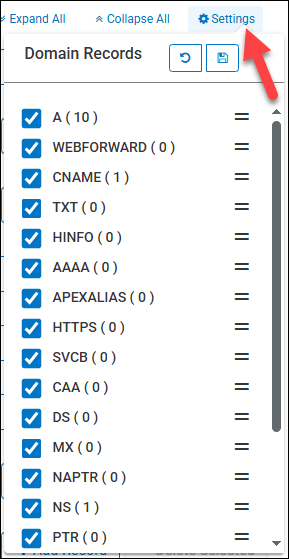
Settings – Using the settings tab, you can manually re-order the record types to appear in whatever order you wish. Additionally, you can also hide record types from being displayed.
-
Expand / Collapse Record – By default, when viewing the records page, every record will be collapsed. Clicking the down arrow will open or expand the record details, while clicking the up arrow will collapse or close the record details.
Settings
The Settings feature allows you to select the order in which the record types appear on your account, as well as determining which record types appear at all.
-
Click the Settings button to open the menu.
-
You can drag and re-order the record types, un-check the box next to a record type to hide it from appearing on the screen.
-
Click the Save (disk icon) button to apply any of your changes, or the Reset (circular arrows) to undo your changes.
If you click the Save button, the Reset button will not override the previously saved changes.