Permissions
The Permission section of the UI Portal allows you to customize by group, the permissions that users within that group will have throughout the UI Portal. As users can be a part of multiple groups, their permissions will be based upon the highest allowable permission granted to them.
For instance, if a user is in Group A with Read, Write and Create, and also in Group B with only Read, that user will maintain Read, Write, and Create permissions across the UI Portal even though their Group B permissions are only for Read access.

|
The three system created Default Groups cannot have their permissions changed, not even by an account Administrator. |
To access the Permissions:
-
Click on Groups from the Accounts page.
-
Click on a Group Name from the list of available groups.
-
Click the View Permissions button.
-
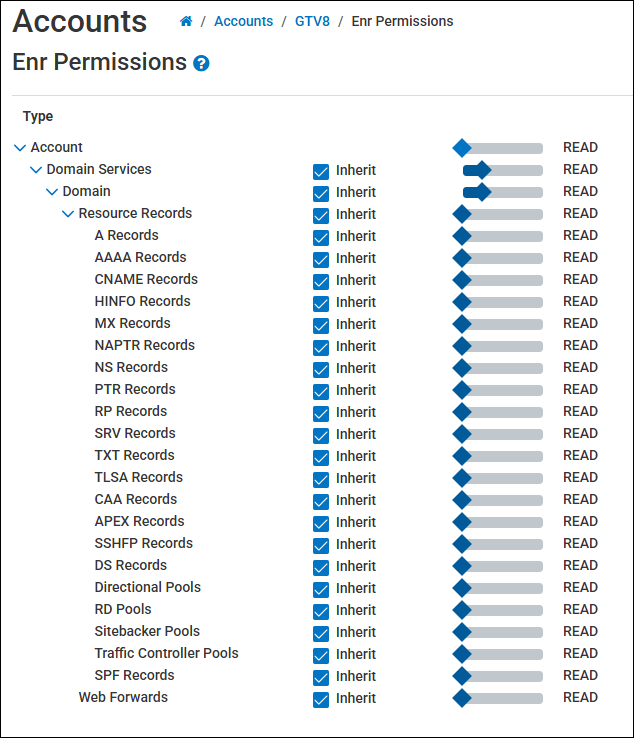
Use the slider bar to increase or decrease the permissions for a specific Type, and then click Save when you are done setting the permission level.
-
The following are the different permission levels you can apply (permission types cannot be customized):
-
Read
-
Read Write
-
Read Write Create
-
Read Write Create Delete
-
Read Write Create Grant
-
Reports can have either None or Read.
-
-
-
You can also use the Inherit check box option to apply the settings from a higher tier to a lower tier from the Type column.
-
For example, apply Read Write Create to the Domain type (click Save), and then click Inherit next to Resource Records. The permissions from the Domains will apply to the Resource Records, and then trickle down to each subsequent type that is also set to Inherit.
-
-
Click Save when you are done applying permissions.
|
|
The Type Domain Services, and Domain control the same functions and behavior on the UltraDNS Managed Services Portal. The main difference is that Domain, provides more granular control over the various records and pools (especially if utilizing the Inherit option. Some features controlled by Domain Services/Domain include enabling DNSSEC for a domain, configuring Zone Transfer Settings, and the ability to create or edit pools and records within a domain. Future enhancements will see a greater deviation between the two, but for now, to avoid confusion, users should treat them as one and the same. |
As a note, the following default (created by the UI) Groups cannot have their permissions changed:
-
Administrative - Users will have access to all account functions including being able to change the Primary user for the account. The Primary user and Administrative users are the only users that can invite new users to the account.
-
Reporting - Users will have Read-only access for the entire account, meaning they cannot edit any account level or domain level details.
-
Technical - Users will have access to all account functions except for the following:
-
Cannot add new users.
-
Cannot move users to and from groups.
-
Cannot change any of the Account Notification Settings.
-
Cannot access Account level Zone Transfer Settings.
-
Cannot initiate a DNS Health Check.
-
Multi-Level Account Groups and Permissions
Please note that the permissions and access for users associated to a Multi-Level Account will differ from those listed above. A key difference is users that are assigned to the Technical Group in a Sub Account will only have basic reporting access, and will have limited access to various features on the portal (they will not be able to view several of the features on the Accounts.
To access Permissions for Users not in a Group (standalone):
-
Click on Groups from the Accounts page.
-
Click on the Not in a Group group name.
-
Click the Permissions button next to the desired user.
-
Select the desired permission level per Type, and then click Save.